Welcome
Welcome to Sail Digital, the professional tool for the Optimist International Association class management, measurement, and manufacturing verification. This manual covers the core workflows for Official Measurers.
1. Access and Installation
Sail Digital is available on multiple platforms for maximum flexibility:
 Browser
Web Application
 iOS
iOS
Available on App Store
 Android
Available on Play Store
2. Login
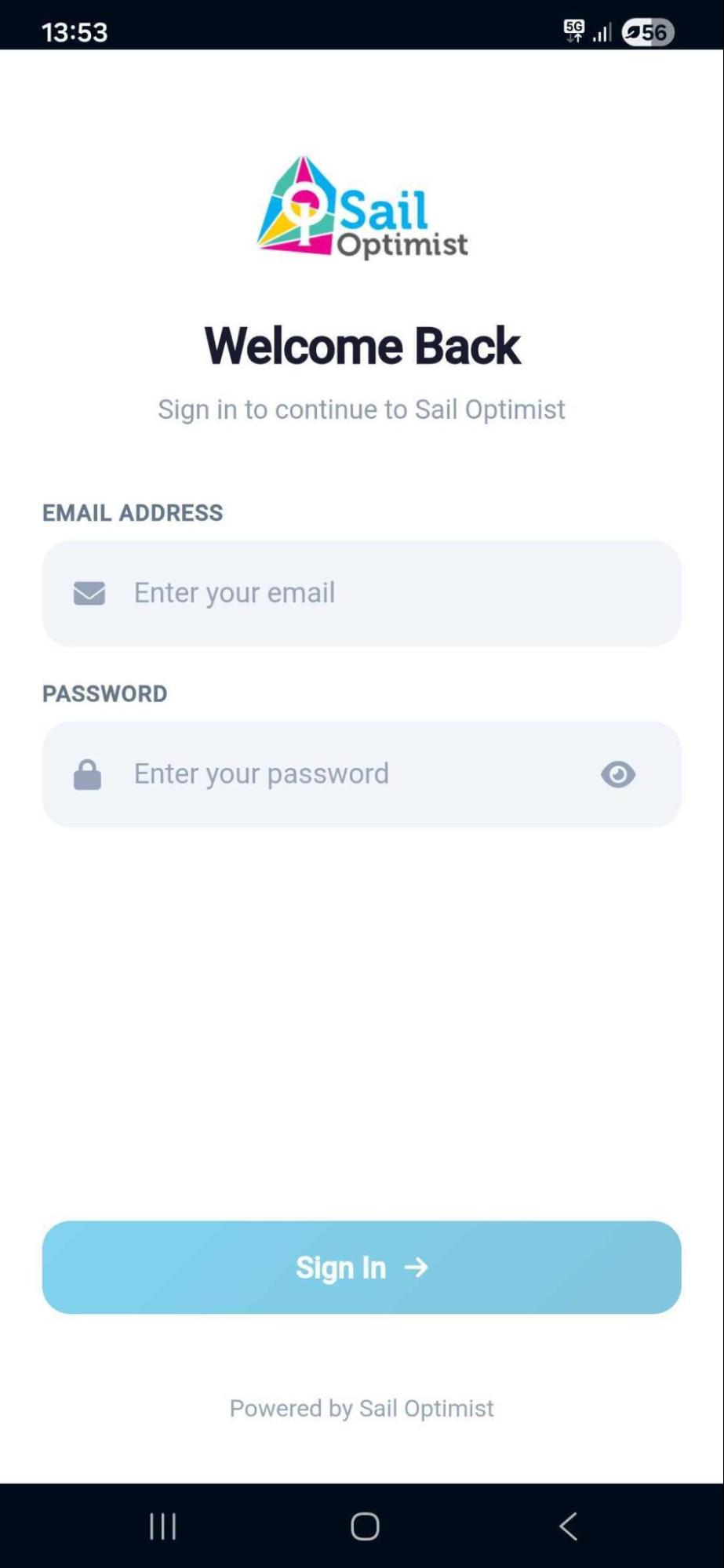
- Open the Sail Digital app on your device
- Enter your registered email address and password
- Tap Sign In
- Grant required permissions when prompted:
- NFC Access: Required to scan equipment tags and verify authenticity
- Location Services: Required to verify the country of measurement/manufacture
3. Dashboard Overview
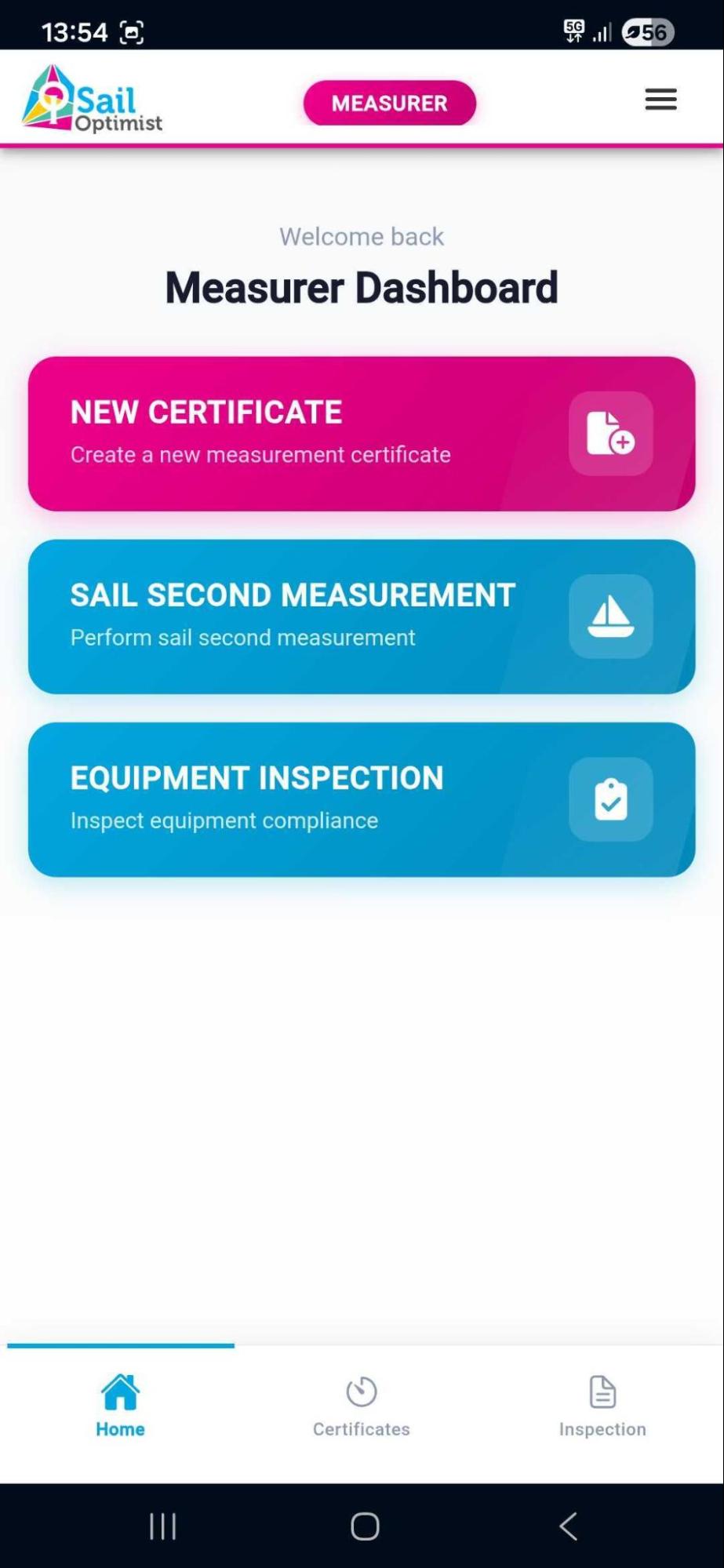
As an Official Measurer, you may authenticate equipment and issue measurement certificates using the app's secure NFC verification depending on verification from your National Association/Federation. Your dashboard provides quick access to:
- Create new measurement certificates
- View past measurements
- Equipment inspection for events
- Access measurement history
4. Creating a Measurement Certificate
Below are the detailed steps for adding a new measurement:
Access New Certificate
From the main dashboard options, select New Certificate.
Component Selection & Location Check
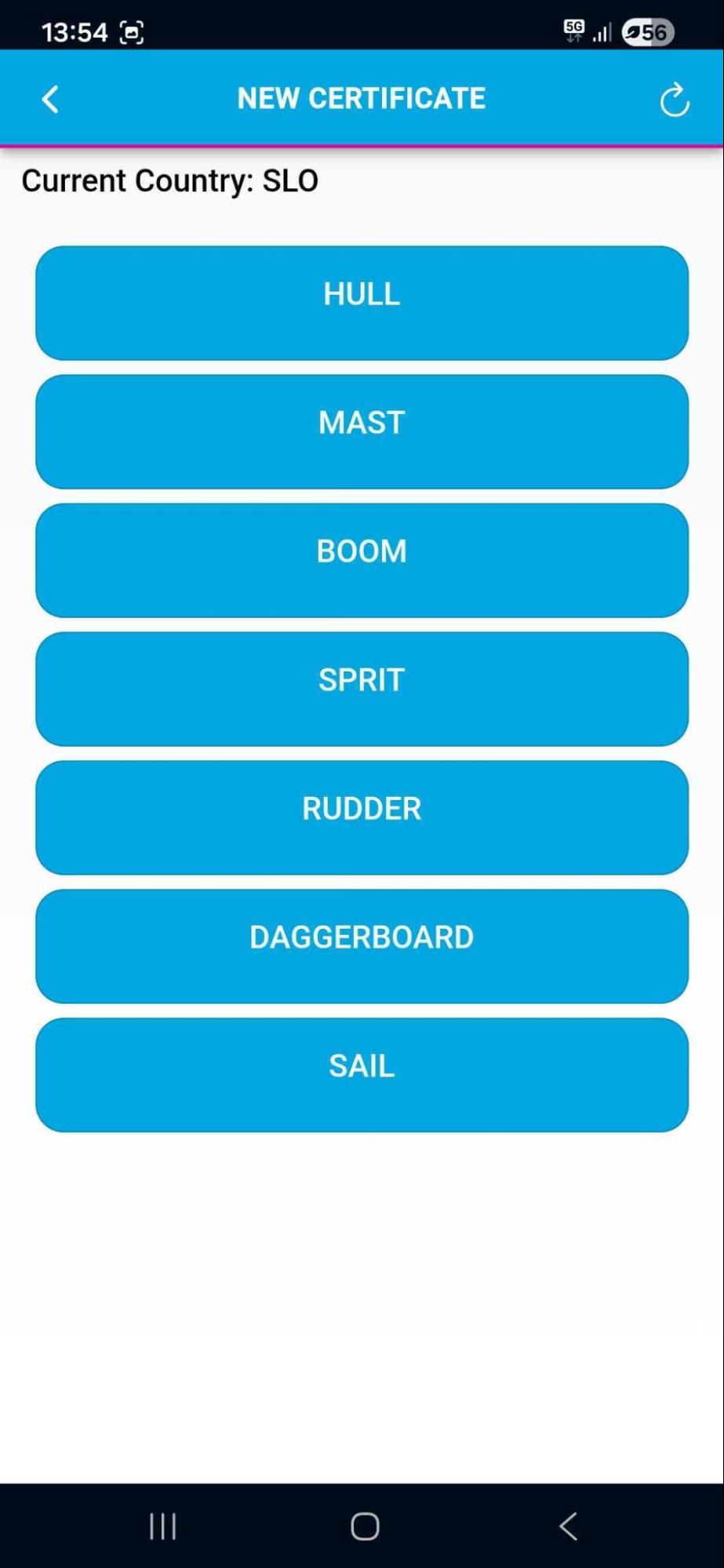
A list of legitimate components will open (you will only see what you are permitted to certify).
- Permissions: Visibility is based on your current country (e.g., if logged in Italy, you see components allowed for Italian measurers).
- Disabled Components: If components are disabled (light blue), you are not authorized to certify them in the current location. Contact IODA Admin to request changes.
Identify Component
- Select the allowed component you wish to measure
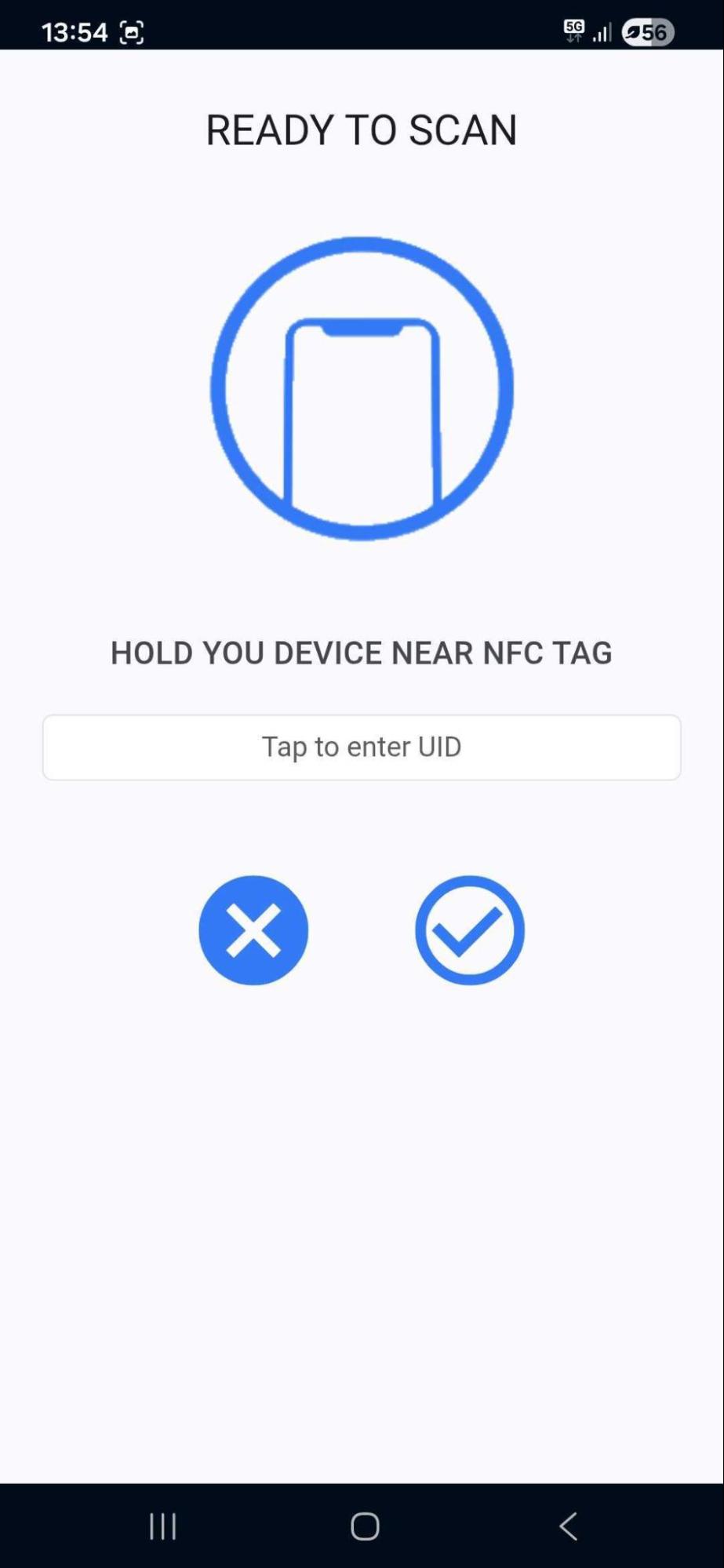
- Scan the item with your phone. If the item is not picked up, you may enter the RFID Serial Number of the item
- Tap the Checkmark button to proceed
Initialization
- Review the basic component information displayed
- Tap the Arrow (lower right) to begin the form
- Disclaimers: You must accept the mandatory disclaimers to unlock the form
Measurement Form
The screen displays the specific rule and an "Actual" field.
- Enter Value: Input the measured value in the "Actual" field
- Helper Tools:
- Rules (Yellow Circle): View detailed general rules
- ? (Black Button): View details for the current specific rule
- Image: Reference diagram at the bottom of the screen
- Navigation: Use the arrows at the bottom to move to the Previous Page or Next Page (item)
Declaration & Saving
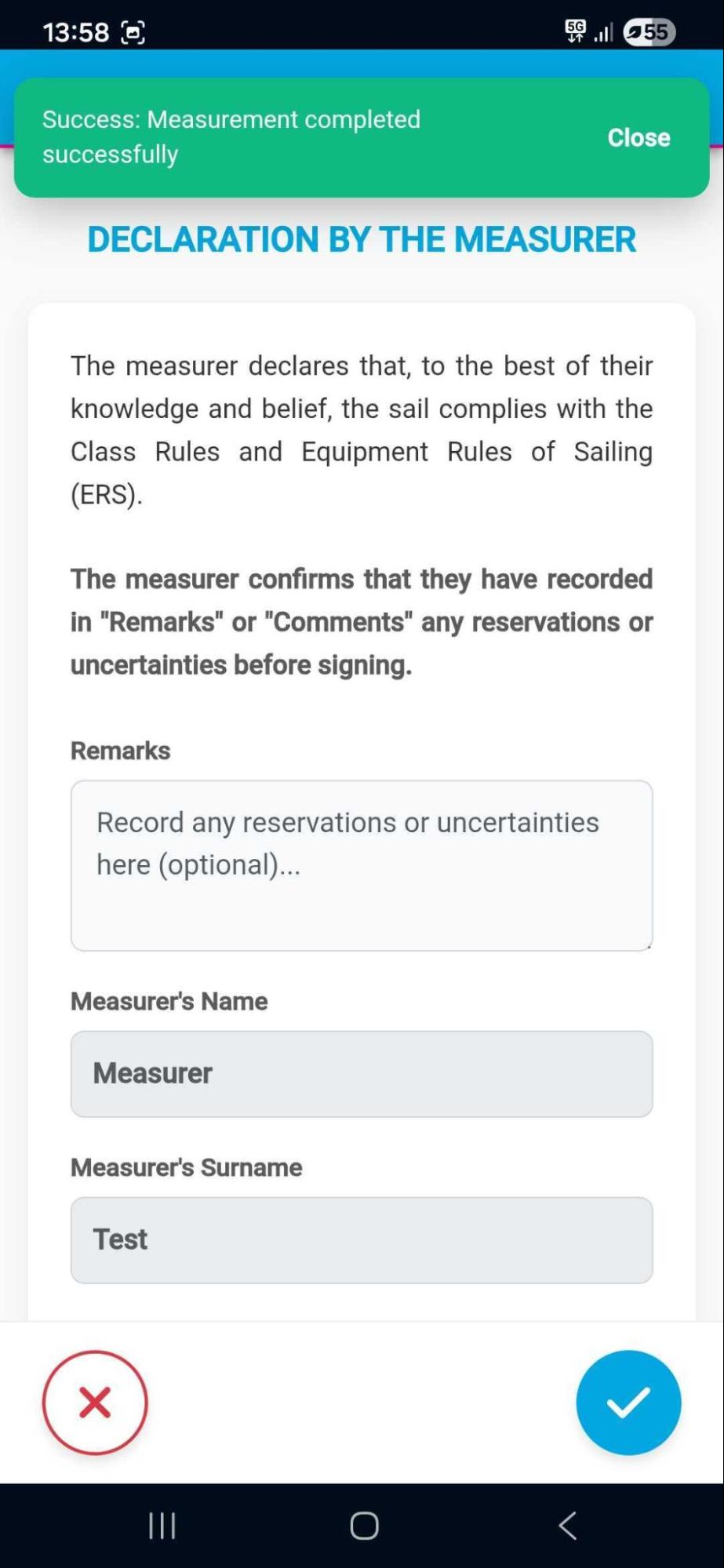
- After the last step, the Measurer Declaration appears (showing your info and date)
- Add Comments if necessary (i.e. this is where if something needs to be noted it must be added here)
- Tap the Checkmark (lower right) to save the completed measurement
Completion
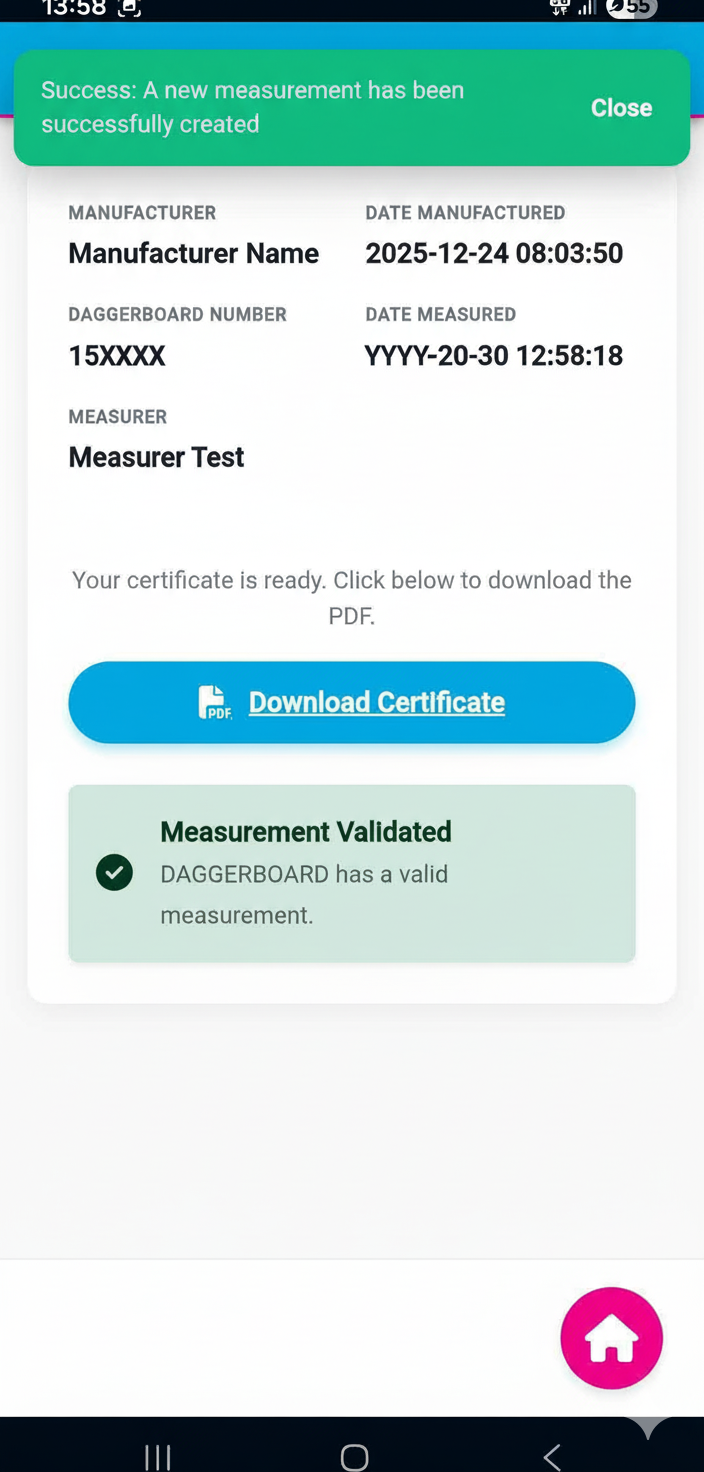
- The system will now generate the measurement certificate for that component
- Download: Tap the Blue "Download Certificate" button to view the official document. Note: items in red are those that are not measuring correctly.
- Tap the Checkmark to return to the home screen
5. Equipment Inspection (Events)
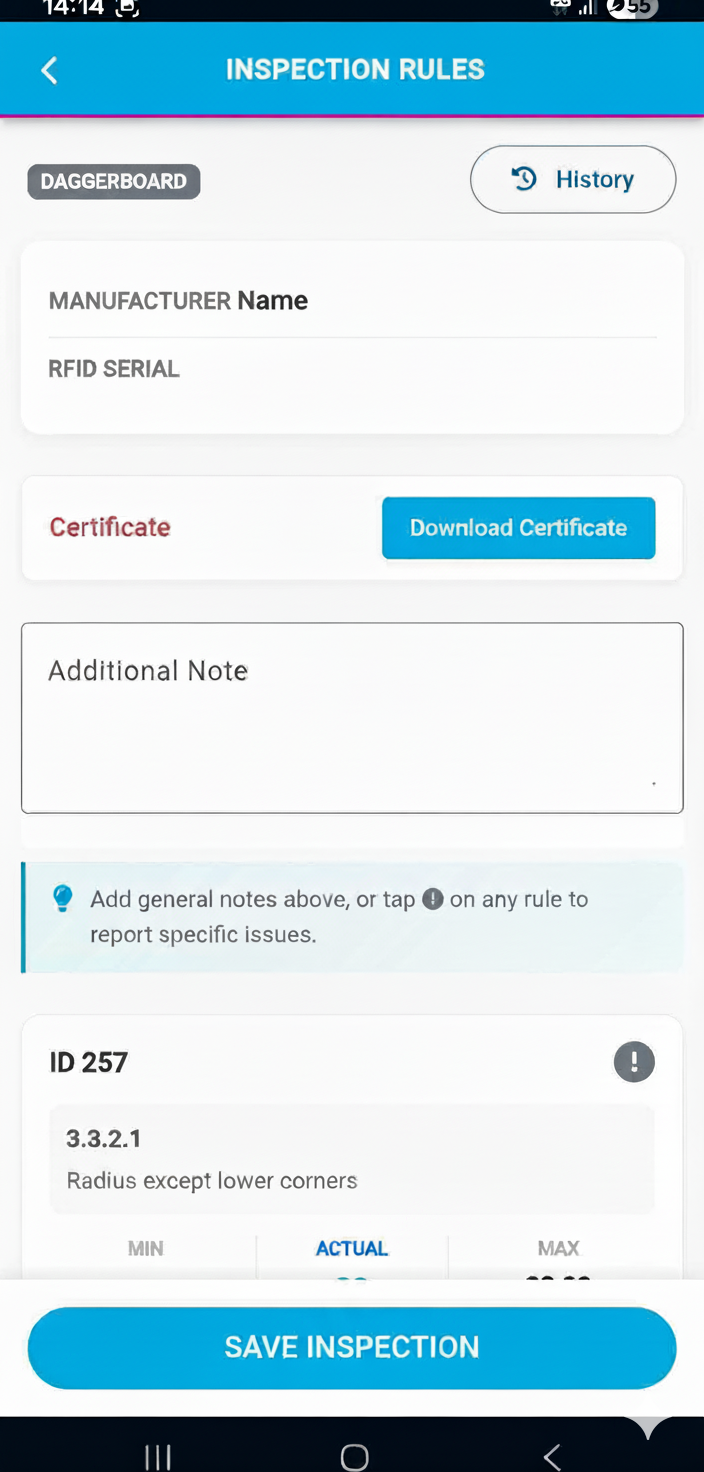
Use this option during a regatta should you wish to view a certificate for a component:
- Select Equipment Inspection from the menu
- Select the specific Event
- Scan the equipment presented by the sailor
- Mark items as "Checked In" for the race
- You have the option to view the measurement certificate via "Download Certificate"
6. Troubleshooting
NFC Not Reading
Remove phone cases that may block the signal. Scan the exact center of the tag.
Location Error
Ensure your GPS is on; certificates cannot be issued without a valid country verification.
Need Help?
For further support, contact info@optiworld.org or email support@infordata.it